How I Moved My Blog from WordPress to a Free Static Site
I was paying more than $6 every month to run my WordPress blog on DigitalOcean. That is over $72 a year for a simple blog with less than 50 posts.
One day I asked myself: Why am I paying this much?
So I moved everything to a static site on Cloudflare Pages. Now my monthly cost is $0. The site is also faster and easier to manage.
I used Claude Code to help me through this whole process. It helped me plan, write scripts, fix bugs, and build the new site. Having an AI assistant made the work much smoother.
Let me share how I did it.
Why I Wanted to Change
WordPress is powerful. But for a simple blog, it felt like too much.
This is how my old WordPress site looked:
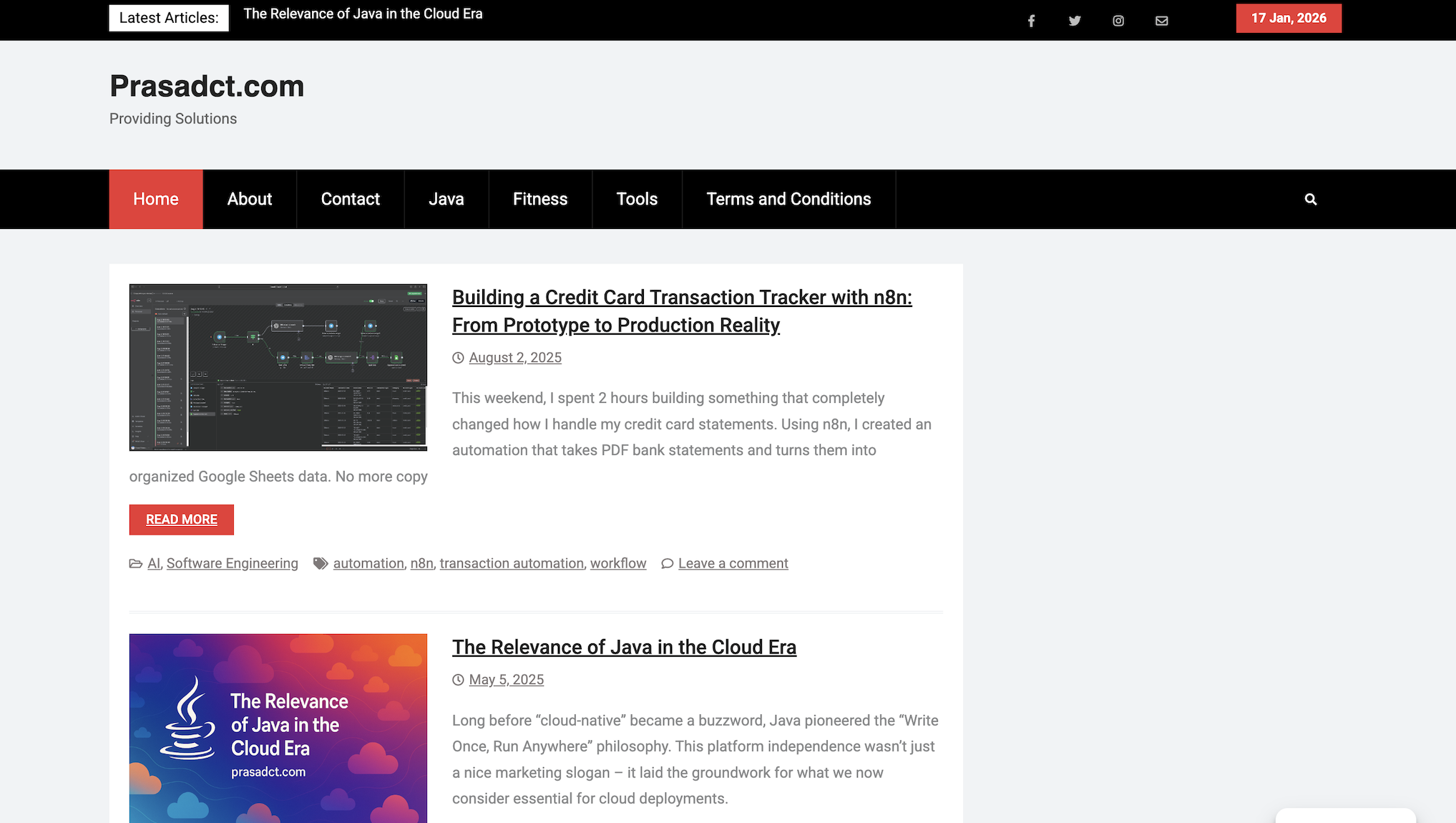
Here were my problems:
Cost - I was paying for a DigitalOcean droplet just to run WordPress. Every month, money was going out for something I used only sometimes.
Speed - WordPress needs a database. Every time someone visits, it builds the page. This takes time.
Maintenance - I had to update WordPress, plugins, and PHP. I also worried about security.
Complexity - I just wanted to write and publish. WordPress had too many buttons and options.
I wanted something simple, fast, and free.
My Plan
Before I started, I made a clear plan:
- Back up everything from WordPress (posts, images, database)
- Choose a static site tool
- Move all my content to the new format
- Set up free hosting
- Point my domain to the new site
Simple steps. But each one needed care.
Step 1: Back Up Everything
This is the most important step. Never skip backups.
I backed up my WordPress database using mysqldump:
mysqldump -u username -p database_name > backup.sqlI also downloaded all my files using tar:
tar -czvf wp-content-backup.tar.gz /var/www/html/wp-contentNow I had a safe copy of everything. If something went wrong, I could always go back.
Step 2: Choose a Static Site Tool
I looked at many options: Hugo, Jekyll, Next.js, and Astro.
I picked Astro because:
- It is fast and modern
- It works well with Markdown files
- It has good support for blogs
- The build output is clean HTML, CSS, and JavaScript
For styling, I used Tailwind CSS. It made the design work quick and easy.
Claude Code helped me set up the Astro project and create the blog templates. When I got stuck on configuration or had errors, I asked Claude Code and it guided me to the fix.
Step 3: Move My Content
This was the tricky part. I had years of blog posts in WordPress. How do I move them?
I used the WordPress REST API to get all my posts. WordPress has a built-in API that gives you your content in JSON format.
With Claude Code’s help, I wrote a Python script to:
- Fetch all posts from the API
- Convert HTML content to Markdown
- Save each post as a
.mdfile with proper frontmatter
The script looked something like this:
import requests
import html2text

# Get posts from WordPress API
response = requests.get('https://mysite.com/wp-json/wp/v2/posts?per_page=100')
posts = response.json()

for post in posts:
    # Convert HTML to Markdown
    converter = html2text.HTML2Text()
    content = converter.handle(post['content']['rendered'])

    # Save as markdown file
    filename = f"{post['slug']}.md"
    # ... save with frontmatter
For images, I downloaded them from my backup and put them in the right folders.
Step 4: Set Up Cloudflare Pages
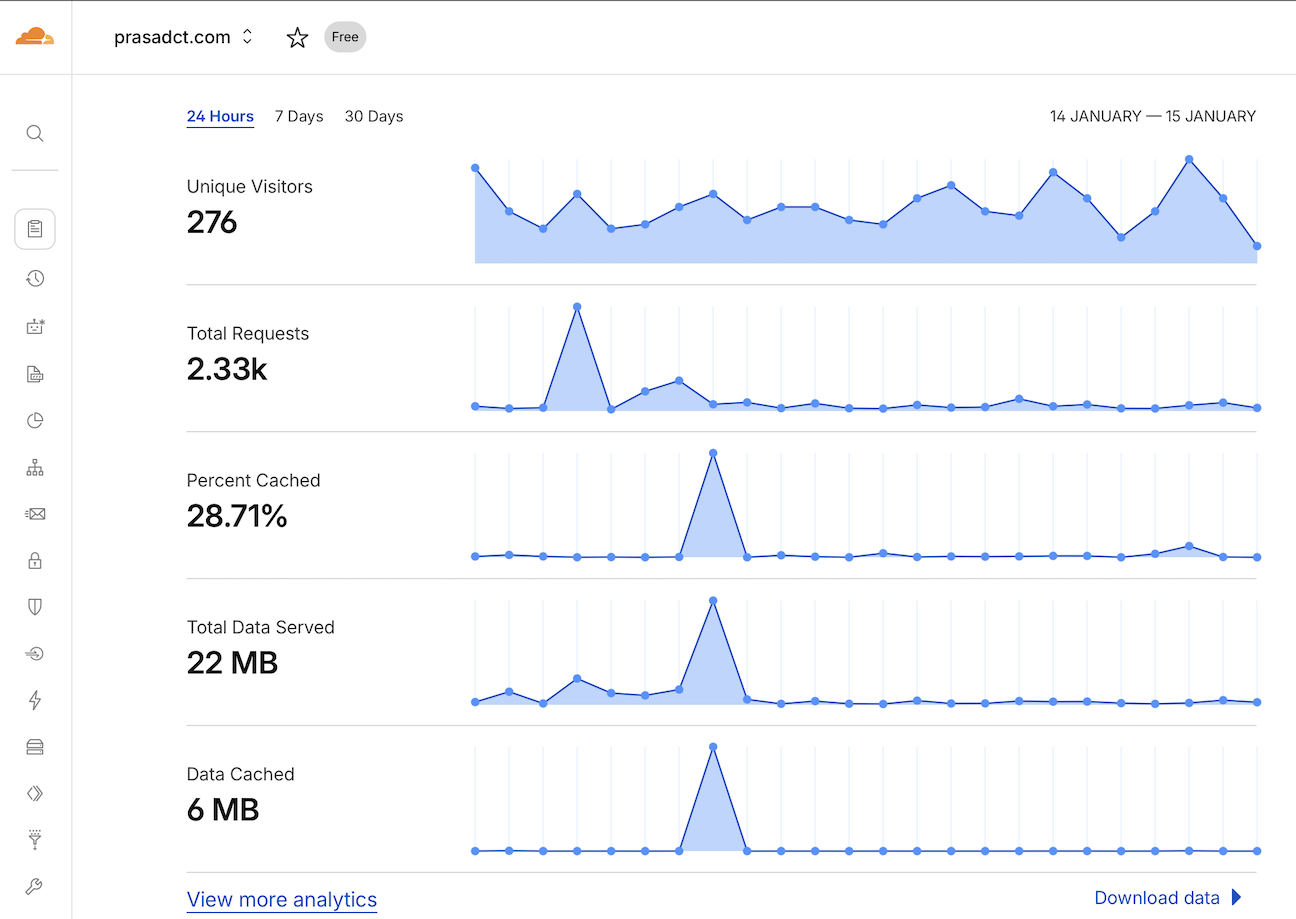
Cloudflare Pages offers free hosting for static sites. Here is what I did:
- Push my Astro project to GitHub
- Connect my GitHub repo to Cloudflare Pages
- Set the build command:
npm run build - Set the output folder:
dist
Cloudflare builds and deploys my site automatically. Every time I push new code, it updates.
Step 5: Connect My Domain
I already had my domain. I needed to point it to Cloudflare.
In Cloudflare:
- Add your domain to your account
- Update your domain’s nameservers to Cloudflare’s nameservers
- In Pages, add your custom domain
This part took some time because DNS changes need to spread across the internet. Be patient here.
The Result
Here is my new blog running on Cloudflare Pages:
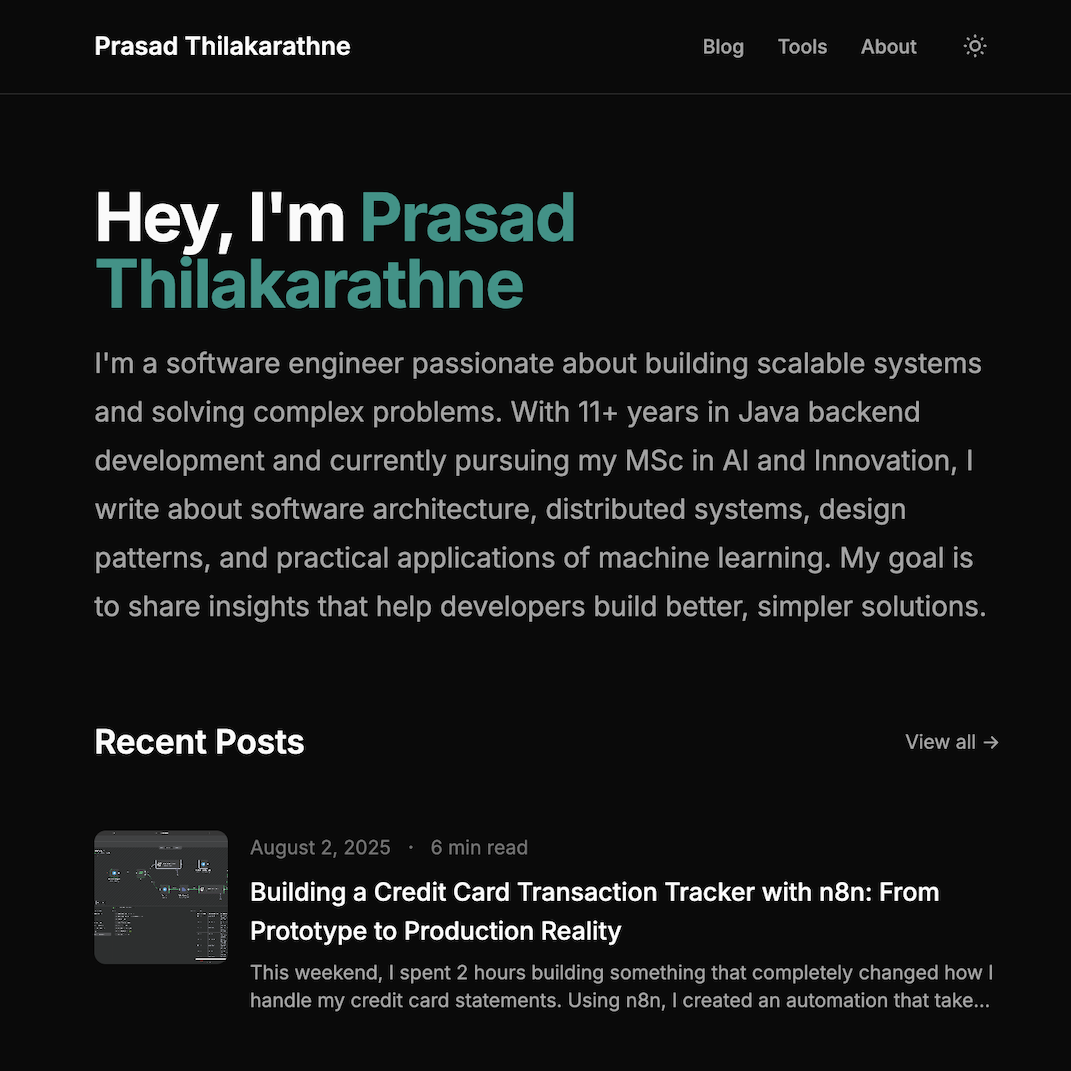
My blog is now:
| Before | After |
|---|---|
| $6+/month | $0/month |
| Slow (database queries) | Fast (static files) |
| Complex WordPress admin | Simple Markdown files |
| Worried about security | No database to hack |
| Updates and maintenance | Just write and push |
The site loads much faster now. There is no database. Just HTML files served from Cloudflare’s global network.
What I Learned
Start with backups. Always. Before you change anything, make sure you can go back.
WordPress REST API is helpful. You do not need fancy tools. The API gives you everything you need to export your content.
Static sites are enough for blogs. You do not need a database for content that does not change often.
Free does not mean bad. Cloudflare Pages is free and very good. It has a generous free tier that works for most personal sites.
Simple is better. My new setup is easy to understand. I write Markdown, push to GitHub, and Cloudflare does the rest.
AI tools speed up the work. Claude Code saved me many hours. It helped me write scripts, debug errors, and learn new tools. Instead of searching Stack Overflow for hours, I asked Claude Code and got answers fast.
Should You Do This?
This approach works well if:
- You have a simple blog or personal site
- You are comfortable with code and command line (or willing to learn with AI help)
- You want to save money
- You like writing in Markdown
It might not work if:
- You need WordPress plugins (comments, forms, e-commerce)
- You are not comfortable with technical steps
- Your site has many authors who need a visual editor
Final Thoughts
Moving from WordPress to a static site took some effort. But now I have a blog that costs nothing to run, loads fast, and is easy to manage.
$6 per month sounds small. But that is $72 per year. Over 5 years, that is $360 saved. And I get a better site.
Sometimes the best solution is the simpler one.
Have questions about this migration? Feel free to reach out. I am happy to help others who want to make the same move.